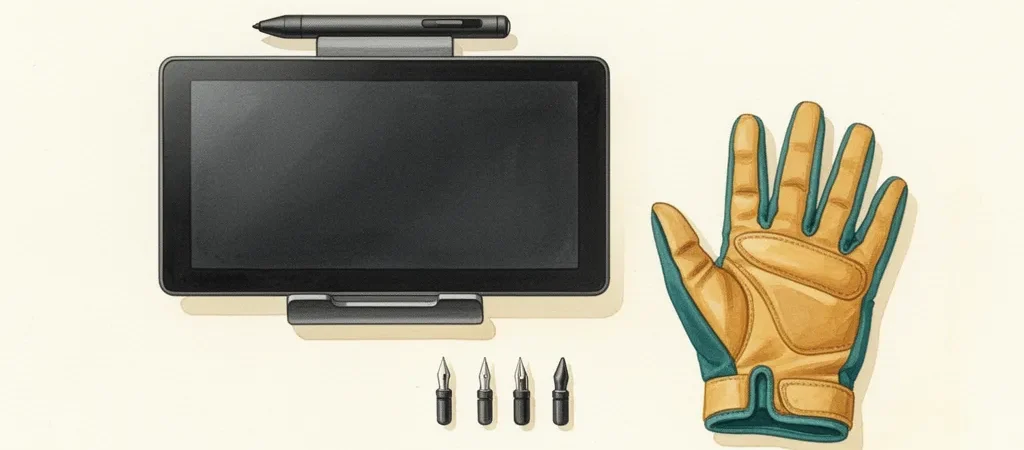
Search “drawing tablet” and you get four hundred results priced from $30 to $3,000, and nothing on the listing pages explains why one costs a hundred times more than another. That gap is where gift shopping for a would-be digital artist goes wrong: people either buy the cheapest thing (usually a tablet too small to draw on comfortably) or panic-buy the most expensive thing (usually far more than a beginner can use).
The good news is that the entire decision collapses into three questions you can answer without tipping off the recipient: do they already draw on paper, do they own a decent computer, and do they want to draw at a desk or on the couch. Those three answers point to exactly one of three devices — a screenless tablet, a pen display, or an iPad — and the rest of this guide is the reasoning behind each branch.
One worry to retire up front: software is not a hidden recurring cost. Krita is free and genuinely good, Procreate is $12.99 once, and the one paid desktop app we recommend is a perpetual license. Nothing here locks your recipient into a subscription.
How we select these gifts
- Specialty retailers first: We start with what specialty retailers actually stock. Digital art hardware isn’t a category Austin-area art stores like Jerry’s Artarama carry deeply, so for this guide we weighted what national art specialty retailers keep on shelves — which, at the entry level, is overwhelmingly Wacom’s One line. Stores whose business depends on return customers don’t stock junk.
- Community consensus: We cross-reference retailer inventory against what hobbyists recommend in their own communities — r/DigitalPainting, r/learnart, and brand-specific forums like r/huion where owners report long-term reliability. Products that show up in both signals get the heaviest weight.
- Age and stage fit: Adult beginners split into two groups with different needs. People who already draw on paper adapt fastest when they can draw directly on a screen; true first-timers learn just as well on a screenless tablet at a quarter of the price. Every pick below is tagged to one of those paths — and sized to avoid the cramped sub-6-inch tablets that make adults quit.
- Budget range: Picks span $8.99 to $299, so the guide works whether you’re adding a stocking stuffer or funding the whole setup.
- Skip-this guidance: Where a popular pick isn’t right for this specific stage — including two very common gift-buying traps — we say so and explain why.
How We Pick: The Three-Question Fork
Question one: do they already draw on paper? This matters more than any spec sheet. Someone with sketchbook habits has years of hand-eye coordination built around watching the pen tip. Put a screenless tablet in front of them — where the hand draws on a black slab while the eyes watch a monitor — and there’s a real one-to-two-week adjustment curve. Most people get through it, but a gift that frustrates its recipient for two weeks is a risky gift. Traditional-media crossovers do better with a pen display or an iPad, where the line appears under the pen like it always has.
Question two: do they own a capable computer? Pen tablets and pen displays are peripherals — they need a laptop or desktop to plug into. Any computer from the last five or six years is fine for drawing. If the recipient’s only device is a phone or a decade-old laptop, the iPad path stops being one option among three and becomes the only correct answer.
Question three: desk or couch? Tethered devices mean a desk habit. An iPad means drawing in bed, at a coffee shop, on a flight. Neither is better, but a gift that fits how someone actually lives gets used, and one that doesn’t gets shelved.
Two more decisions we’ve made for you. Size: a medium tablet with roughly an 8–10 inch active area is right for a beginner — small enough to fit a desk, large enough that strokes come from the arm instead of a locked wrist. The sub-6-inch bargain tablets are the number-one quit trigger in this hobby. And software: it’s a solved problem. Krita costs nothing, Procreate costs $13 once. Don’t let a bundled “free trial” of subscription software sway a hardware decision.
One by Wacom Medium: The Safe Default
If you can’t answer the three questions — you’re buying for a coworker, or the recipient has never touched a pencil — this is the branch to take. The One by Wacom Medium is the tablet that entry-level digital art has standardized on: no screen, no wireless, no shortcut buttons, just a pressure-sensitive surface and a pen that never needs charging.
The word doing the work in that name is Medium. The 8.5 x 5.3 inch active area is the difference between drawing from the shoulder and elbow — the way every drawing teacher tells students to work — and scratching out cramped wrist-only marks on a surface the size of an index card. Wacom sells a small version for about $20 less. Don’t buy it.
Pair this with Krita, which is free and installs in five minutes, and you’ve handed someone a complete digital art setup for under $80. The honest downsides: it connects over aging micro-USB, and there’s nothing premium about the plastic. It doesn’t matter. This tablet’s job is to answer “will I actually like this hobby?” as cheaply and reliably as possible, and nothing does that job better.

One by Wacom Medium Pen Tablet (CTL-672)
The single most-repeated answer in r/DigitalPainting and r/learnart “what’s my first tablet” threads, and Wacom’s entry line is what national art specialty retailers actually stock. Critically, it’s the MEDIUM size — the 8.5 x 5.3 inch active area sidesteps the cramped-wrist frustration that makes adults quit after buying a tiny tablet. Battery-free pen, dead-simple drivers, works with the free software a beginner will start on.
- Medium active area matches natural adult arm movement — the most common beginner-tablet mistake avoided
- Wacom driver stability is the best in class; near-zero setup friction on Mac or Windows
- Battery-free 2K-pressure pen with 3 spare nibs included
- No express keys or Bluetooth — deliberately bare-bones
- Older micro-USB connection feels dated at this price
If They Already Draw on Paper: Huion Kamvas 13 (Gen 3)
For a recipient with a sketchbook habit, the Kamvas 13 solves the one problem that stalls traditional artists going digital: the hand-eye disconnect. You draw directly on a 13.3-inch screen, the line appears under the pen tip, and years of paper-trained muscle memory transfer over on day one instead of week three.
Pen displays in this class used to cost $500 and up; the Gen 3 refresh brings the specs that matter — a fully laminated screen, anti-sparkle etched glass that feels closer to paper than bare glass, 16K pressure levels — down to $209. It also ships with an adjustable stand in the box, which is why you won’t find a standalone stand padding out this guide.
Two things to know before you wrap it. It’s a display, not a computer — it must plug into a laptop or desktop, so it fails question two if the recipient doesn’t own one. And the first-day cable setup (USB-C, HDMI, power) is the fiddliest moment of ownership. Budget ten minutes of patience; after that it just works.

Huion Kamvas 13 (Gen 3) Pen Display with Stand
The budget screen-tablet consensus pick: draw directly on a laminated 13.3-inch display for what a mid-tier screenless tablet cost five years ago. The Gen 3 refresh (16K pressure, anti-sparkle etched glass, included stand) is what r/huion threads point beginners to when they ask “is a cheap screen tablet a trap?” — this one isn’t.
- Drawing directly on-screen removes the hand-eye disconnect that stalls many adult beginners
- Fully laminated, anti-glare etched glass and 99% sRGB — specs that used to cost $500+
- Ships with an adjustable stand and dual programmable dials
- Needs a computer to run — it is a display, not a standalone device
- Cable setup (USB-C/HDMI/power) is the fiddliest part of ownership
If They Don’t Own a Good Computer: Apple iPad 11-inch + Procreate
The third branch of the fork, and the one that ends more “which tablet?” debates than any other: if the recipient’s household doesn’t include a reliable laptop or desktop, buy the base iPad. It needs no drivers, no cables, and no desk. Add Procreate — $12.99, once — and it’s a complete art studio that lives on the couch.
Even for people who do own a computer, this path has a distinct appeal: the drawing happens wherever they are. Beginners practice more when the tool is within arm’s reach of the sofa, and practice frequency is the whole game in the first six months. The iPad also carries the least gift risk of anything in this guide — if the hobby doesn’t stick, the household still has an iPad.
The one thing you must not miss: the Apple Pencil (USB-C) is a separate purchase, roughly $79, and the iPad is not a drawing device without it. Order both, or the gift is incomplete on the morning it’s opened. And resist the urge to “be safe” with an iPad Pro — more on that in the skip section, but the short version is a beginner cannot feel the difference and the price difference is enormous.

Apple iPad 11-inch (A16, 128GB)
The third fork in the beginner decision tree, and the one forum veterans increasingly recommend for adults: iPad plus the $13 Procreate app is a complete, computer-free digital art studio on the couch. For a beginner who doesn’t already own a capable computer, this is genuinely the lowest-friction path into the hobby.
- Procreate ($12.99 one-time) is the most beginner-loved art app in existence
- No computer, no drivers, no cables — draw anywhere from minute one
- Holds resale/household value even if the hobby doesn’t stick
- Apple Pencil (USB-C) is a required ~$79 add-on — budget for it
- 128GB base storage fills up if they also shoot lots of video
The Buy-Once Upgrade: Xencelabs Pen Tablet Medium Bundle
This pick exists for one specific gifter: the one who already knows the recipient will commit. Maybe they’ve been drawing daily for a year and keep borrowing a friend’s tablet, or they’ve said out loud that digital art is the plan. For that person, the Xencelabs Medium Bundle is the screenless tablet they’d eventually buy themselves.
Xencelabs was founded by former Wacom engineers, and the enthusiast verdict — echoed in Creative Bloq’s rare five-star review — is that this bundle beats the equivalent Wacom Intuos Pro while costing hundreds less. The box includes two pens (thick and thin grip), a wireless connection, a carrying case, and the Quick Keys remote, a 40-shortcut puck that saves a software learner from constant keyboard fumbling.
The honest framing: three One by Wacoms cost less than this one bundle. This is conviction-tier gifting. If there’s any real chance the recipient bounces off the hobby, start at pick #1 and let them earn the upgrade.

Xencelabs Pen Tablet Medium Bundle with Quick Keys
The underrated pick: Xencelabs was founded by ex-Wacom engineers, and enthusiast communities plus Creative Bloq’s rare 5-star review rate this bundle above the equivalent Wacom Intuos Pro at hundreds less. For an adult beginner you believe will stick with it, this is buy-once gear: two pens, a remote with 40 shortcut keys, wireless, carrying case in the box.
- Pro-grade 8192-level pens (two included, thick and thin)
- Quick Keys remote replaces keyboard-shortcut fumbling — a real gift for someone learning software
- Wireless with excellent Windows/Mac/Linux driver support
- Overkill if the recipient may bounce off the hobby — three One by Wacoms cost less
- Screenless, so it still requires the look-at-monitor adjustment period
Software Worth Gifting: Clip Studio Paint Pro v4
Software is normally a terrible gift — you can’t wrap a subscription, and most recipients resent inheriting a monthly bill. Clip Studio Paint is the exception because it’s the rare professional-grade art application still sold as a one-time perpetual license. Pay $59.99 once, own it forever.
For a beginner on the desktop path, its defining feature is line stabilization: the software smooths shaky pen strokes into confident lines, which is enormously forgiving in the first months when hand control is still developing. It’s also the standard tool of comic and manga artists, so if the recipient’s ambition is drawing characters, this is the app the artists they admire are using. There’s a huge free library of community brushes and 3D pose models to grow into.
Two caveats. The interface is dense — expect the recipient to spend a weekend with tutorial videos before it clicks. And major version upgrades cost extra down the road, though v4 will be current for years. If you’re gifting the iPad path instead, skip this entirely and put $13 toward Procreate on the App Store.
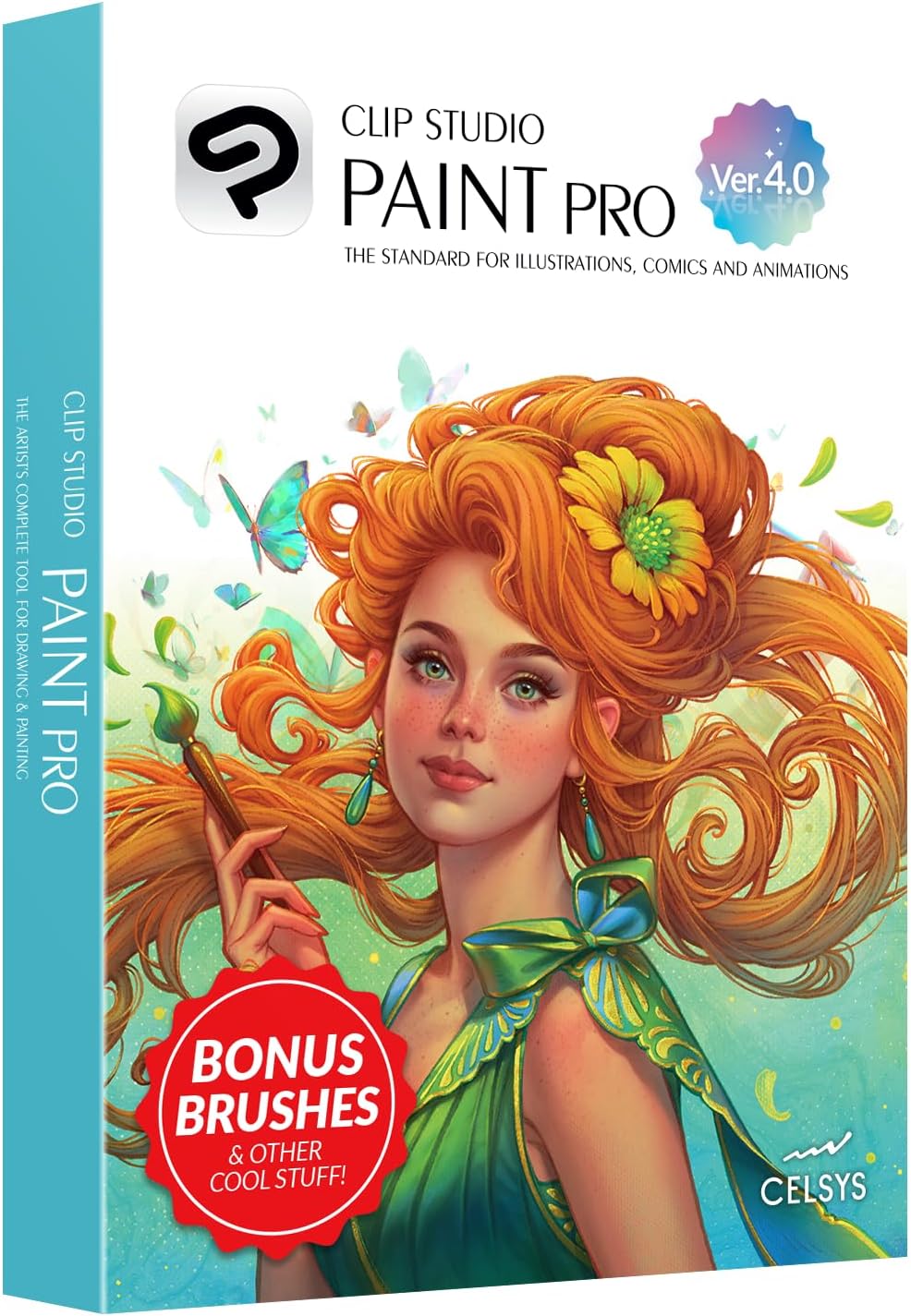
Clip Studio Paint Pro v4 (One-Time License)
The forum-consensus answer to “what software after the free stuff?” — the rare pro-grade art application still sold as a one-time perpetual license, which makes it giftable in a way subscriptions aren’t. Its stabilized inking and natural brushes are why r/DigitalPainting regulars recommend it over a Photoshop subscription for illustrators.
- Perpetual license — pay once, own it, no subscription guilt
- Best-in-class line stabilization is very forgiving for shaky beginner strokes
- Massive free library of community brushes and 3D pose models
- Interface density can overwhelm at first; expect a tutorial-video weekend
- Major version upgrades cost extra later
The Screen-Free Companion: Beginner’s Guide to Digital Painting in Procreate
Hardware answers “what do I draw on?” but the question that actually determines whether a beginner sticks with digital art is “what do I draw, and how?” That’s what 3dtotal’s Beginner’s Guide to Digital Painting in Procreate answers — full step-by-step projects written by working professional artists, not an app manual with screenshots.
3dtotal is the specialty publisher of the digital art world, and this series is what art-store book sections and review sites like Parka Blogs consistently endorse. The projects teach light, color, and composition — fundamentals that transfer to any app or medium — with Procreate as the vehicle rather than the point.
The obvious pairing is with the iPad pick, either as the “open this too” companion or as a standalone gift for someone who already owns an iPad. It’s less useful on the desktop-tablet path; for a Wacom or Huion recipient, choose a general digital painting fundamentals title instead.

Beginner’s Guide to Digital Painting in Procreate (3dtotal)
3dtotal is the specialty publisher of the digital art world — their Beginner’s Guide series is what art-store book sections and Parka Blogs consistently endorse. Step-by-step full projects from professional artists teach actual painting fundamentals (light, color, composition), not just app buttons. A deliberately screen-free way to gift a screen hobby.
- Real artist-authored tutorials, not app-manual filler
- Teaches transferable fundamentals alongside Procreate technique
- Currently about 44% under its $32.99 list price
- Procreate-specific — less directly useful on the Wacom/Huion + desktop path
The $9 Add-On Every Path Needs: Huion Two-Finger Artist Glove
Every digital art community eventually tells beginners the same thing: get the glove. This two-finger lycra glove covers the pinky edge of the drawing hand so it glides over the tablet surface instead of sticking, and on touch-enabled screens — the Kamvas and the iPad especially — it stops a resting palm from leaving stray marks mid-stroke.
What makes it the right gift add-on is that it’s path-agnostic. Whichever of the three branches you chose above, the glove works with it, which makes it the safe stocking stuffer or card-topper when you’ve already committed to a bigger pick. The only sizing note: the one-size fit runs snug on larger hands.

Huion Two-Finger Artist Glove
The universal cheap accessory every tablet community tells beginners to grab: a two-finger lycra glove that lets the hand glide over the tablet surface and stops palm smudges and accidental touch input on screen tablets and iPads alike. Works with every other pick in this guide.
- Works with pen tablets, pen displays, and iPads — path-agnostic
- Prevents palm-triggered stray marks on touch-enabled screens
- Under $10, fits left or right hand
- One-size-fits-most sizing runs snug on larger hands
What to skip
Three traps. First, the $25–$40 micro tablet with a 4×3-inch active area — the most-gifted and most-abandoned digital art purchase there is. A surface that small forces cramped, wrist-only strokes, and the recipient blames their own talent instead of the hardware. Second, the flagship iPad Pro bought “to be safe”: a base iPad, an Apple Pencil, and Procreate do everything a beginner can use for hundreds less, and no beginner can feel what the Pro adds. Third, anything bundled with subscription-locked drawing software — Krita is free and Clip Studio is a one-time license, so a hardware bundle that leans on a subscription trial is solving a problem that doesn’t exist.
The whole guide fits on the back of a napkin. Never drawn before and owns a computer: One by Wacom Medium plus free Krita. Already draws on paper: Kamvas 13 for a desk setup, or iPad plus Procreate for the couch. No reliable computer in the house: the iPad is the only correct answer. Whichever branch you land on, add the $9 glove.
What you’re really giving is a low-stakes way to find out whether this hobby fits — which is why the right-sized $77 tablet is a better gift than the wrong $800 one. A recipient who fills their first canvas without fighting their gear comes back the next night, and that second session is where hobbies actually begin.
If you’re stuck between two branches, use question two as the tiebreaker: check what computer they own. A recent laptop makes the One by Wacom the safe call; no computer makes it the iPad. And when in doubt between tiers, size down in price, not in drawing surface — a modest tablet gets used, a cramped one gets shelved.